
Always reply to Google Maps reviews promptly and professionally: open your Business Profile, find the review under the "Reviews" tab, and post a short, personalized reply within a day or two. For single-location businesses, the dashboard works fine. For franchises and multi-location operators, the Google Business Profile API and dedicated review-management tools make consistent, on-brand replies possible at scale.
TL;DR:
- A profile must be verified before replies are allowed; every posted response becomes public, and Google notifies the reviewer, so never include private details.
- Effective replies thank the reviewer, mention a specific detail from the visit, and stay within two to four sentences without promotional language.
- Route reviews mentioning legal threats, safety incidents, discrimination, health code concerns, or named employee accusations to a manager before posting any response.
- The API can notify teams within minutes, but custom integrations require OAuth, quota handling, ongoing maintenance, verified locations, and human rules for sensitive replies.
- Most replies appear within about 10 minutes, but reviews flagged for manual checks can delay publication for as long as 30 days.
Table of Contents
- Best Practices for Replying to Google Maps Reviews
- Copy-Ready Reply Templates for Every Review Type
- How to Find, Edit, and Manage Your Review Replies
- Scaling Replies with the Google Business Profile API and Pub/Sub
- Why Timely Replies Matter and How to Measure Them
- A Practical Workflow for Consistent Replies Across Locations
- Balancing Speed and Care as You Grow
- Try a Tested Way to Reply at Scale
- FAQ
- Sources
Best Practices for Replying to Google Maps Reviews
A good reply does three things fast: it thanks the reviewer, it references something specific from their visit, and it stays brief. Generic replies ("Thank you for your feedback!") read as automated even when a person wrote them, and specifics are what make a response feel real to the next person reading it.
Before posting anything, know that your Business Profile must be verified to respond to reviews, and once you reply, the customer is notified and your response becomes visible to anyone viewing that listing. Google's own guidance recommends keeping replies professional, concise, and free of promotional language, with reviewer privacy protected at all times.
Here's a working checklist for every reply:
- Use the reviewer's name when it's available, and skip it gracefully when it isn't ("Hi there" or "Thanks for stopping by").
- Reference specifics: the dish they ordered, the technician who helped them, the service date, not just "your experience."
- Keep it short: two to four sentences is usually enough. Long replies bury the point and look defensive.
- Never share personal details such as a full name, account number, or appointment history in a public reply.
- Avoid admitting fault or liability in writing, especially for complaints that could become legal or insurance matters. Acknowledge the frustration instead of assigning blame.
- Move sensitive conversations private: offer a phone number or e-mail rather than hashing out details in public.
- Skip the sales pitch. A reply isn't the place to mention a coupon code or a new menu item unless it's genuinely relevant to the review.
Negative reviews need an extra layer of care. Lead with empathy, apologize for the experience (not necessarily for wrongdoing), and give a clear next step. Google's support documentation notes that replies may be reviewed before they post, typically appearing within about 10 minutes but occasionally taking up to 30 days if flagged for manual review.
Some replies shouldn't go out without a second set of eyes. Any review mentioning a legal threat, a safety incident, discrimination, or a potential health code issue should route to a manager before anyone hits "post." The same goes for one-star reviews that name a specific employee or make an accusation that could be disputed later.
Pro Tip: Draft your negative-review replies in a separate document first, sleep on them if you can, then paste the final version in. It's much easier to catch a defensive tone before it's public than after.
Copy-Ready Reply Templates for Every Review Type
These templates are starting points. Swap in the bracketed details, adjust the tone to match your brand, and trim anything that doesn't fit the specific review.
Positive review templates
- "Thank you, [Name]! We're so glad you enjoyed [specific detail, like 'the brisket' or 'your appointment with Sarah']. Hope to see you again soon."
- "We really appreciate the kind words, [Name]. I'll be sure to pass this along to [staff name/team] who helped make your visit great."
- "Thanks for being a repeat customer, [Name]! It means a lot that you keep coming back, and we'll keep working to earn it."
- "This made our day, [Name]. Thank you for taking the time to share your experience with [specific service/product]."
Neutral or mixed review templates
- "Thanks for the honest feedback, [Name]. We'd love to hear more about what happened with [specific issue], could you reach out to us at [contact]?"
- "We appreciate you flagging this, [Name]. A few details in your review don't match what we have on file for [date/order], so please give us a call at [phone] so we can look into it."
- "Thank you for the rating, [Name]. If there's anything specific we could improve, we'd genuinely like to hear it, feel free to e-mail us at [contact]."
Negative review templates
- "We're sorry to hear about your experience, [Name]. This isn't the standard we hold ourselves to, and we'd like to make it right. Please reach out to [name/contact] directly so we can look into what happened."
- "Thank you for letting us know, [Name]. We take this seriously and would like to understand more about what went wrong with [specific issue]. Please call us at [phone] at your convenience."
- "We appreciate you bringing this to our attention, [Name]. We're looking into [specific issue] internally and would welcome the chance to discuss it with you directly at [contact]."
- "We're disappointed to hear this, [Name]. Our goal is always [brand value, like 'reliable service' or 'a great meal'], and it sounds like we missed the mark. Please contact us at [contact] so we can address this properly."
For any reply mentioning a specific complaint, injury, discrimination claim, or threat of legal action, route the draft to a manager before posting, regardless of how the template reads. A thoughtful reply that goes out a day late beats a rushed one that admits something you can't take back.
Common placeholders worth keeping in a shared template document: [Name], [staff name], [date of visit], [order/service detail], [contact phone or e-mail], [specific issue mentioned]. Keeping these consistent across your team avoids the awkward mismatch of five different reply styles on the same listing.
How to Find, Edit, and Manage Your Review Replies
Finding and managing replies takes a few clicks whether you're on desktop or mobile.
- On desktop, sign in to your Google Business Profile, select your location, and click the "Reviews" tab to see every review along with any existing replies.
- To reply, click "Reply" under the review, type your response, and submit. It will post publicly once Google's review process clears it.
- On mobile, open the Google Maps app, tap your profile icon, go to "Your Business Profile," then "Reviews" to see the same list and reply inline.
- To edit a reply, find the review, click the three-dot menu next to your existing reply, select "Edit," make your changes, and save. The timestamp updates to reflect the edit.
- To delete a reply, use the same three-dot menu and select "Delete." The review itself stays up, only your response disappears.
- To copy a review's link for internal tracking or as a record, click the three-dot menu on the review itself and select "Share review," which generates a direct URL you can paste into an email or ticket.
Keep a simple log of which reviews needed escalation and how they were resolved. It's useful for training new team members and for spotting repeat issues before they show up in three more reviews.
Scaling Replies with the Google Business Profile API and Pub/Sub
A single location can manage replies by hand without much trouble. Once you're running five, twenty, or two hundred locations, the dashboard turns into a bottleneck, and that's when programmatic access starts to make sense.
The Google Business Profile API exposes an accounts.locations.reviews.updateReply method that lets a verified account list, retrieve, post, and delete review replies without opening the dashboard for each location. Paired with that, Pub/Sub notifications can alert your system in near real time when a NEW_REVIEW or UPDATED_REVIEW event fires, so a new one-star review doesn't sit unnoticed for three days while someone gets around to checking the dashboard.

Pub/Sub-based alerts mean a new review can reach your team within minutes of being posted, rather than whenever someone remembers to check each location's profile. That speed matters most for negative reviews, where a fast, thoughtful reply often changes how the complaint reads to future customers.
A few things to weigh before building on the API directly:
- Development effort: setting up OAuth, handling the API's request limits, and building a review-ingestion pipeline is a real engineering project, not a weekend script.
- Account verification: every location needs to be verified in Google Business Profile before the API will return or accept data for it.
- Governance: someone still needs to decide which replies get sent automatically and which require human review before posting, API access doesn't remove that decision, it just moves where it happens.
- Maintenance: Google's API versions and quotas change over time, so a homegrown integration needs upkeep, not just a one-time build.
For most multi-location operators, the trade-off comes down to whether you have engineering resources to maintain a custom integration or would rather use a tool built on top of that API that handles the maintenance for you.
Why Timely Replies Matter and How to Measure Them
Replying to reviews builds trust with the next person who reads your listing before they ever walk in or call. It also matters to the reviewer themselves. Google notifies customers when a business replies to their review, and a thoughtful response can shift the tone of how that review reads to everyone else, even when the original rating doesn't change.
A handful of metrics make it easy to track whether your reply process is actually working:
- Response time: the gap between when a review posts and when your reply goes live. Faster is better, especially for negative reviews.
- Percent of reviews replied to: aim for close to 100%, not just the ones that are easy to answer.
- Rating trend over time: whether your average rating is holding steady, climbing, or slipping across a rolling 90-day window.
- Sentiment shift in review text: whether recurring complaints (wait times, a specific product, billing issues) decrease after you've addressed them in replies and, presumably, in operations.
On timing, Google's own documentation notes that most replies post within about 10 minutes, though some are held for review and can take up to 30 days to appear. Build that variability into your expectations rather than assuming every reply is instant.
When you're triaging a backlog, negative reviews come first, especially ones with specific, fixable complaints. After that, prioritize recent positive reviews that mention a staff member or detail by name, since those are quick wins that reinforce good behavior internally. Treat reply consistency as a trust and engagement lever rather than a ranking guarantee. Industry guidance on review responses generally frames timely replies as one signal among several that shape how customers perceive a business, not a direct lever on search position.
A Practical Workflow for Consistent Replies Across Locations
Once a business is managing replies across multiple locations, the question stops being "what should this reply say" and becomes "how do we keep forty people writing replies that all sound like the same business."
A workflow that holds up at scale typically looks like this: a new review comes in and triggers a notification, a draft reply gets generated using brand-specific templates and tone guidelines, anything flagged as sensitive (low-star, legal language, safety complaints) routes to a manager for approval, and everything else either posts automatically or with a single click of confirmation. The draft-then-approve step is what keeps automation from turning into a liability.
If you're evaluating any tool for this, a few features matter more than the rest:
- Approval controls for low-star or flagged reviews, so nothing sensitive posts without a human reading it first.
- Brand-voice templates, so a reply from one location reads consistently with a reply from another.
- Roles and permissions, so front-line staff can draft while a manager retains final say on anything risky.
- Analytics on response time and volume, so you can see where replies are lagging before it becomes a pattern of unanswered reviews.
A tool built around this workflow cuts down the hours someone spends copying and pasting replies across dozens of listings, while keeping a person in the loop exactly where it counts: sensitive, low-star, or legally touchy reviews. The automation handles the drafting; a human still decides what goes public.
Pro Tip: However you handle drafting, always have a human scan for tone and privacy before a reply posts. An AI-drafted response that reads slightly off, or that accidentally repeats a detail the reviewer didn't share publicly, is harder to walk back once it's live.
Whatever stack you use, following Google's guidance on managing reviews still applies: replies are public, reviewers are notified, and your Business Profile needs to stay verified for any of this, manual or automated, to work.
Balancing Speed and Care as You Grow
A small, single-location business is usually better off replying personally to every review. The owner's voice, flaws and all, builds more trust than a polished template ever will, and the volume is low enough that this stays sustainable.
Franchises and agencies hit a different problem: volume makes personal replies at every location impossible, and inconsistent tone across locations looks worse than a slightly templated one. That's when a formal approval workflow, not just a shared document of templates, starts to matter. Someone needs to own the decision of what gets auto-posted and what waits for a human.
Whichever end of that spectrum you're on, the same two rules hold: follow Google's review policies, and never put a reviewer's private details in a public reply.
— Ryan
Try a Tested Way to Reply at Scale
If replying consistently across multiple locations is starting to eat into hours you don't have, that's exactly the gap we built Local Review Reply to close. This type of tool drafts personalized, on-brand replies automatically, routes anything sensitive or low-star through an approval step before it goes live, and supports the roles and permissions multi-location teams and agencies need to keep every listing sounding like the same business.
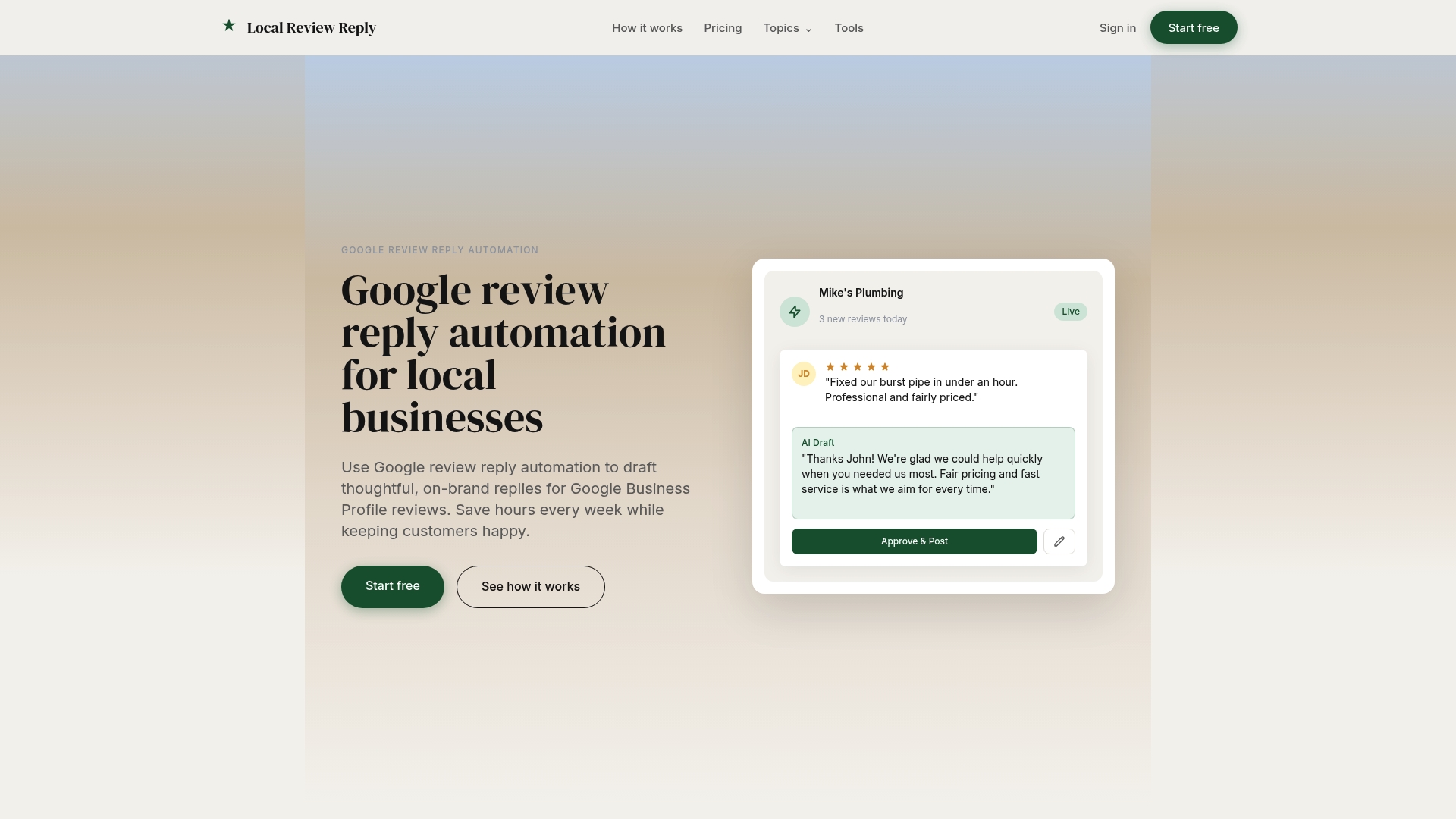
Here's what that looks like in practice:
- Automated drafts that match your brand voice instead of generic, one-size-fits-all language.
- Approval controls that keep a manager in the loop for sensitive or low-star reviews before they post.
- Multi-location support built for franchises and agencies managing reviews across many profiles at once.
Human approval typically stays part of the process for anything sensitive. If you manage reviews for a restaurant group, a service franchise, or a roster of agency clients, our pricing page lays out the Free, Starter, Growth, Scale, and Custom plans so you can find the fit for how many locations and replies you're handling.
If you're still building out your Google Business Profile itself before tackling review replies, this restaurant setup guide walks through the optimization basics first.
FAQ
How do I respond to a review on Google Maps?
Open your Google Business Profile, go to the Reviews tab, find the review, and click "Reply" to post a short, personalized response. On mobile, the same flow is available through the Google Maps app under your Business Profile's Reviews section.
How do I find my past review replies?
Your existing replies appear directly under each review in the Reviews tab of your Business Profile, both on desktop and in the Google Maps app. There's no separate archive, every reply stays attached to the review it responds to unless you edit or delete it.
What makes a Google review reply effective?
An effective reply thanks the reviewer, references a specific detail from their visit, and stays brief, generally two to four sentences. Google's own guidance recommends keeping replies professional and free of promotional content, with any sensitive follow-up moved to a private channel.
Can you reply to a reply on a Google review?
No, businesses can post one reply per review, and reviewers can't publicly respond back to that reply within the Google Maps interface. If a customer wants to continue the conversation, that needs to happen through the private contact method offered in your reply.
How long does it take for a Google review reply to post?
Most replies post within about 10 minutes, though Google notes that some replies are held for review and can take up to 30 days to appear if flagged. This variability is normal and isn't a sign that anything went wrong with your reply.