
The fastest personalized Google review reply follows a four-part formula: [Reviewer's name] + [specific detail from their review] + [next step or resolution] + [your real name and role]. That structure works for positive and negative reviews alike. Before you post anything, run this quick check: your Google Business Profile is verified, you reply promptly within a few days, and you sign with a real person's name.
Pro Tip: When a reviewer is anonymous or leaves no comment on a 5-star rating, skip the name and lead with the service instead: "Thank you for the five stars on your recent HVAC tune-up — we look forward to seeing you next season. — Maria, Service Manager."
Key Takeaways
Personalized Google review replies that include the reviewer's name, one specific detail, a next step, and a real sign-off consistently outperform generic responses in both customer perception and long-term rating trends.
| Point | Details |
|---|---|
| Use the four-part formula | Name + specific detail + next step + real sign-off covers every scenario, positive or negative. |
| Reply within 24–72 hours | Complaints need a response within 24 hours; positive reviews within 72 hours at most. |
| Set token fallbacks before deploying | Every personalization token needs a fallback value so blank placeholders never appear in a live reply. |
| Require human approval for low-star replies | Auto-post only 4–5 star replies; route anything below 3 stars to a human before it goes live. |
| Localreviewreply drafts and routes replies | The platform drafts on-brand replies with token support and holds sensitive reviews for team approval. |
Table of Contents
- How to read and reply to reviews on Google Business Profile
- Core elements of an effective personalized reply
- Ready-to-use reply templates with personalization tokens
- How to reply to negative and mixed reviews
- How to personalize replies at scale with tokens and approval workflows
- Common reply mistakes, privacy cautions, and Google policy reminders
- When to reply and how to measure the impact
- How to edit or delete a reply after posting
- What actually matters in practice
- Localreviewreply handles the drafting so your team handles the judgment
- Sources
How to read and reply to reviews on Google Business Profile
Google Business Profile requires a verified listing before you can reply to any review. If your profile isn't verified, the reply button simply won't appear. Check your verification status at business.google.com — a verified profile shows a blue checkmark next to the business name.
Once verified, you can find your reviews in three places: the Business Profile dashboard at business.google.com/reviews, directly on Google Maps by searching your business name, or through the Google Maps app on mobile. All three surfaces show the same reviews and let you reply.
The reply flow itself takes about 30 seconds:
- Open the review you want to respond to.
- Click or tap Reply.
- Paste or type your response.
- Click Post reply.
On permissions: the account owner can always reply. If you have a team, you can grant manager or owner access through the Business Profile dashboard under "Manage users." Standard users do not have reply access, so set roles deliberately if multiple people handle reviews.
Core elements of an effective personalized reply
A reply earns its keep when it does five things: uses the reviewer's name, references something specific they mentioned, stays concise, offers a next step when there's a problem, and closes with a real person's name and title.
The specificity piece trips up most businesses. You don't need to copy the reviewer's words back at them. Instead, extract one concrete detail and rephrase it:
- Reviewer says: "The technician was early and fixed the leak in under an hour."
- Reply says: "We're glad Marcus got there ahead of schedule and had the leak sorted quickly."
That's it. One detail, rephrased, shows you actually read the review.
Bullet checklist for every reply:
- Use the reviewer's first name when it's visible
- Reference one specific service, staff member, or outcome they mentioned
- Keep the reply under 150 words for positive reviews; under 200 for negative ones
- Offer a direct contact path (phone or email) for unresolved issues
- Sign with a real name and role, not just the business name
Pro Tip: Set a brand voice guide for your team: two or three adjectives that describe how replies should sound (e.g., "warm, direct, professional") and one or two phrases to avoid (e.g., "We apologize for any inconvenience"). Consistency across locations matters more than perfection on any single reply.
The HBR study on replying to reviews found that businesses that reply to reviews tend to receive better ratings over time. The mechanism is straightforward: public replies signal to prospective customers that the business is attentive and accountable.
Ready-to-use reply templates with personalization tokens
The templates below use fill-in tokens in curly braces. Swap them for real values before posting, and always set a fallback so a blank token never goes live.
Common tokens: {first_name}, {service}, {staff_name}, {location}, {contact_email}, {appointment_date}
Positive reviews
5-star with comment (short): 5-star with comment (longer): 5-star, no comment: 4-star (positive with mild reservation):
Mixed and lower-star reviews
3-star (mixed feedback): 1–2 star (apology + offline escalation):
Special scenarios
Employee praise: Repeat or loyal customer: For a broader library of scenario-based phrasing, the Textedly positive review response examples and AppFollow template collection are worth bookmarking as starting points.
How to reply to negative and mixed reviews
The goal with a low-star reply is not to win an argument. It's to show the next hundred people reading that review that you respond with professionalism and care.

Sample reply for a 1–2 star review:
When to move the conversation offline: Any time the resolution involves a refund, a safety concern, personal account details, or a legal matter, take it off the public reply immediately. A simple phrase works: "We'd like to discuss this privately — please email us at {contact_email}." Never post financial figures, medical details, or identifying information in a public reply.
Escalation checklist for serious complaints:
- Confirm the reviewer's details internally before responding publicly.
- Post a brief, calm acknowledgment within 24 hours.
- Invite them to a private channel (phone or email) with a named contact.
- Set an internal deadline to follow up privately within one business day.
- Involve a manager or owner for any mention of injury, legal action, or media.
- Document the complaint and resolution in your CRM or review log.
If a review violates Google's policies (spam, fake, or contains prohibited content), flag it for removal through the Business Profile dashboard. Google's review management help page walks through the flagging process.
How to personalize replies at scale with tokens and approval workflows
Scaling personalized replies without losing quality comes down to one principle: automate the drafting, not the judgment. Saved replies with dynamic tokens — such as {first_name}, {sender_name}, and {client_name} — let teams build a library of ready-to-send replies that still feel individual.
Setup checklist:
- Create a template library organized by scenario (positive, mixed, negative, employee praise).
- Insert tokens at every personalization point.
- Set fallback values for every token — if
{first_name}is blank, the fallback might be "there" or "valued customer." - Preview each template with test data before saving.
- Assign approvers: who can post directly, and who needs sign-off.
HubSpot's token documentation makes the fallback requirement explicit: tokens pull from known contact properties, and when a property is missing, the fallback text renders instead. The same logic applies to review replies. A token that renders as blank in a public reply is worse than no personalization at all.
Approval workflow by star rating:
- 4–5 star reviews: AI-drafted reply with token validation passes to auto-post after a brief delay (15–30 minutes) unless flagged.
- 3-star reviews: Draft routes to a team member for a quick read before posting.
- 1–2 star reviews: Require human approval. Flag any reply containing keywords like "refund," "lawsuit," "injury," or "media" for manager review before anything goes live.
Pyn's token documentation illustrates what happens when expected data is missing: the token either renders a fallback or leaves a blank. For public-facing replies, a blank is a reputation risk. Test every template with a missing-data scenario before deploying it.
Pro Tip: Build a "token validation rule" into your workflow: before any reply posts, the system checks that no token placeholder (the curly-brace text itself) appears in the final output. If one does, the reply holds for manual review. This single rule prevents the most embarrassing automation failures.
For a deeper look at safe auto-reply workflows, the automated Google review reply guide covers how to combine AI drafting with human approval gates in practice.
Common reply mistakes, privacy cautions, and Google policy reminders
Most reputation damage from review replies comes from a handful of avoidable errors.
Mistakes to avoid:
- Posting PII publicly. Never include a customer's last name, address, account number, medical detail, or financial information in a public reply. Move those details to a private channel. Regulatory guidance on privacy in public communications reinforces this as a baseline standard.
- Defensive or combative language. Phrases like "that's not what happened" or "you're mistaken" read poorly to every future customer who sees the exchange, not just the original reviewer.
- Lengthy legal disclaimers. A 300-word legal response to a 1-star review signals panic, not professionalism. Keep it short and move the detail offline.
- Forgetting to sign. An unsigned reply from "The Team" feels impersonal and slightly evasive. A real name builds trust.
- Inconsistent voice across locations. If your downtown location sounds warm and your suburban location sounds corporate, customers notice. A shared template library and brand voice guide fix this.
- Copying the review verbatim. Repeating the reviewer's exact words back at them reads as lazy. Rephrase the specific detail instead.
- Replying to every review identically. Even a small variation in phrasing signals a human wrote it. Identical replies across dozens of reviews signal a bot.
On flagging inappropriate reviews: If a review is fake, spam, or violates Google's content policies, you can flag it directly from the Business Profile dashboard. Google reviews the flag and may remove the content. You cannot remove a legitimate negative review, even if it's unfair. The Google Business Profile help center documents the flagging process in detail.
When to reply and how to measure the impact
Timing guideline: Reply within 24 hours for complaints and within 72 hours for positive reviews. For a 1-star review that mentions a safety issue or a public incident, reply within a few hours with a brief acknowledgment and an offline invitation, even if the full resolution takes longer.
Speed matters because prospective customers often read the most recent reviews first. A complaint that sat unanswered for two weeks looks worse than the complaint itself.
What to measure:
- Average star rating trend over 30, 60, and 90-day windows
- Response rate: percentage of reviews that received a reply, by location
- Time-to-reply: average hours between review posted and reply posted
- Follow-up contact rate: how many reviewers reached out privately after a reply invited them to
- Sentiment trend: whether the ratio of positive to negative reviews shifts after a consistent reply program begins
The HBR study on review replies found a positive association between merchant replies and subsequent rating improvements. That's a correlation, not a guarantee, but it's a strong enough signal to treat reply consistency as a reputation investment rather than a courtesy.
Stat to track: Response rate by location is the single most actionable metric for multi-location operators. A location with a 20% response rate and a 4.1 average rating has a clear lever to pull.
How to edit or delete a reply after posting
Editing is almost always the right call. Deleting a reply removes it entirely, which can look suspicious if the original review is still visible. Edit when you need to correct a factual error, update contact information, or improve tone. Delete only when the reply violates Google's policies or accidentally contains PII.
To edit or delete from Business Profile:
- Go to business.google.com and open your profile.
- Navigate to Reviews.
- Find the review with the reply you want to change.
- Click the three-dot menu next to your existing reply.
- Select Edit reply or Delete reply.
- If editing, make your changes and click Save.
To edit from Google Maps:
- Search for your business on Google Maps.
- Scroll to the review section.
- Find your reply and click the pencil icon or three-dot menu.
- Edit and save.
When you edit a reply, the original reply is replaced immediately. Google does not display a public edit history, but the reviewer may receive a notification that the reply changed. If you corrected something material (a wrong phone number, a misstatement), consider adding a brief note at the end of the edited reply: "Updated: correct contact email is {contact_email}." That transparency tends to land well.
The Google Business Profile help center documents current UI behavior for reply management, which is worth checking when Google updates its interface.
What actually matters in practice
Most guides on personalized Google review replies focus on the template. The template is the easy part. The harder part is the operational defaults your team will actually follow at 4 PM on a Friday when three reviews come in at once.
A few defaults worth adopting immediately: reply within 24 hours as a hard internal rule, not a guideline. Sign every reply with a first name and title, not just "The Team." Set a fallback value for every token before you deploy any saved reply. And treat the 3-star review as the most important one to get right — it's the rating that most often reflects a fixable problem, and a good reply can shift a hesitant customer back to loyal.
The speed-versus-personalization trade-off is real but manageable. That's the right division of labor: automation handles the structure, a person handles the one detail that makes it feel real.
The central-control-versus-local-voice tension is trickier for franchises and multi-location operators. The answer isn't to pick one. Build a shared template library with approved phrasing, then give location managers a narrow lane to personalize within it. Central control sets the guardrails; local voice fills them in.
Localreviewreply handles the drafting so your team handles the judgment
Replying consistently across dozens of locations and hundreds of reviews each month is where manual processes break down. Localreviewreply drafts personalized, on-brand replies for your Google Business Profile reviews in seconds, using your templates and tokens, then routes sensitive low-star replies through an approval workflow before anything goes live.
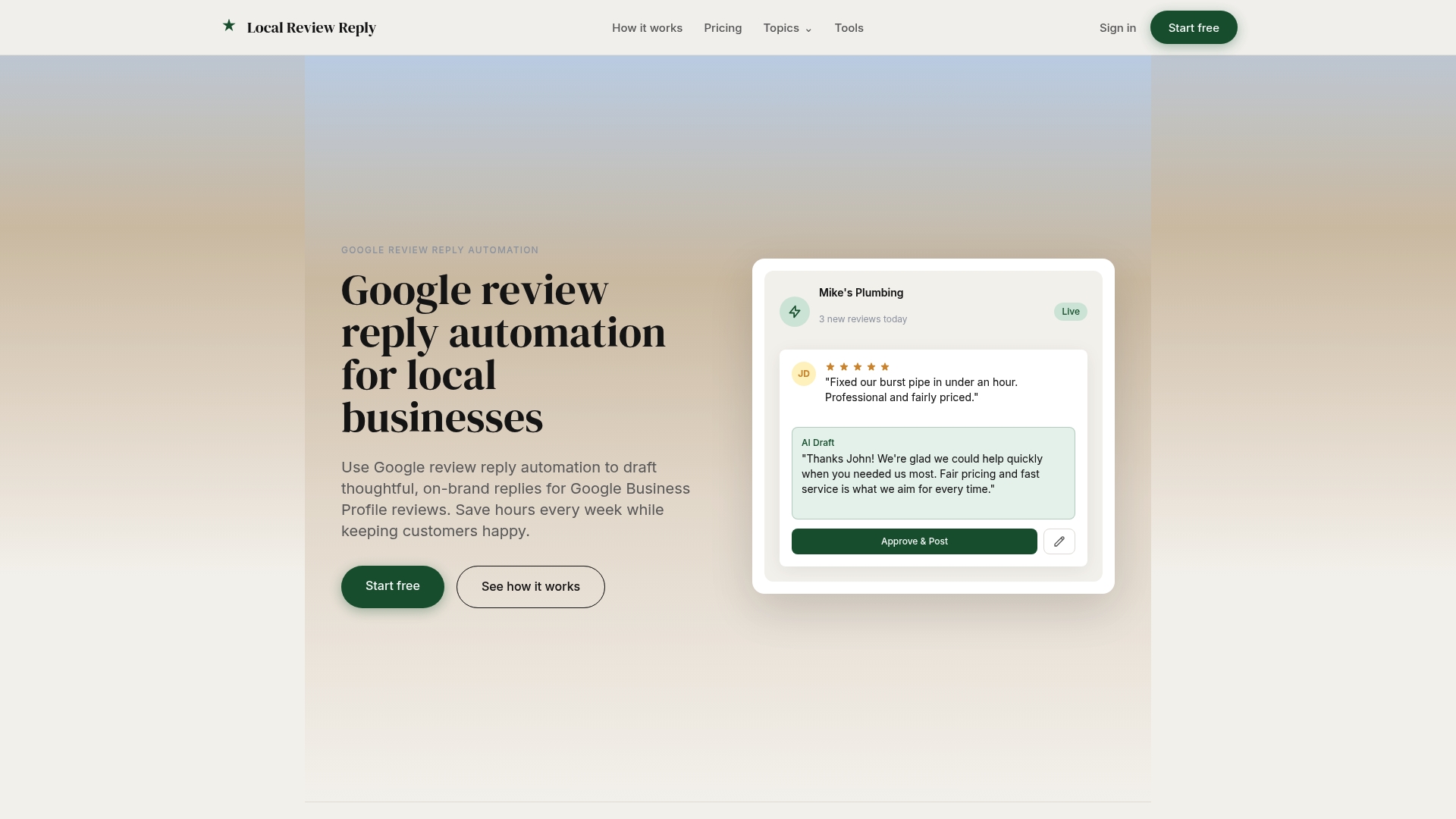
The product supports multi-location management, team roles and permissions, and analytics so you can track response rate and timing across every location from one dashboard. Automated drafts handle the volume; your team approves anything that needs a human read. That's the right balance between speed and oversight.
Agencies managing multiple clients can access white-label reply workflows built for that use case. Franchise operators get multi-location controls that keep brand voice consistent without removing local flexibility.
Browse the Google review response template library to see ready-to-use replies by scenario, or start a free trial at Localreviewreply to connect your Business Profile and see drafts in action.
Sources
The following resources back the guidance in this article and are worth bookmarking for ongoing reference.
- Manage customer reviews - Google Business Profile Help
- Study: Replying to customer reviews results in better ratings | HBR
- Saved Reply Tokens | December 2024 | The Element451 Help Center
- Use personalization tokens | HubSpot Knowledge
- Personalize your content using tokens and custom senders | Pyn Help Center