
Three approaches cover almost every review alerts setup: Google's native email and push notifications, a hosted review-monitoring tool, or a developer-built integration using the Google Business Profile API with Cloud Pub/Sub. Solo operators and single-location businesses do fine with native notifications. Multi-location operators and agencies usually need a hosted tool for centralized routing and approval workflows. Developers building custom dashboards or apps should go straight to the API.
Each path trades off differently on speed, scale, and reply capability:
- Native notifications are free and fast to set up, but they cap out around 100 locations and offer no shared inbox.
- Hosted tools add routing, filters, and team workflows, at the cost of a subscription and sometimes polling delays.
- API integrations deliver real-time events but require engineering time and Cloud Pub/Sub configuration.
Teams that want alerts paired with AI-drafted replies and human approval controls, including franchises and multi-location operators, often land on a platform like Local Review Reply rather than piecing together native alerts and a separate reply process.
Key Takeaways
A reliable review alerts setup combines native Google notifications with a monitoring backup, since native alerts can lag, land in spam, or stop entirely past 100 locations.
| Point | Details |
|---|---|
| Match approach to scale | Use native alerts alone under 100 locations; add a hosted tool or API beyond that. |
| Per-manager toggle | Every manager account must enable Customer reviews notifications individually. |
| Build filters early | Route low-star reviews to a watched channel and batch high-star reviews into digests. |
| Developers need Pub/Sub | Real-time alerts require a Cloud Pub/Sub topic and the correct publish permissions. |
| Pair alerts with approved replies | Local Review Reply centralizes alerts with AI-drafted replies and approval controls for sensitive reviews. |
Table of Contents
- Setting Up Review Alerts With Google's Native Notifications
- What Hosted Review-Monitoring Tools Actually Do
- Where Do Review Alerts Go: Slack, Email, WhatsApp, or Teams?
- How Do You Set Up Google Business Profile API Notifications?
- Cutting Alert Noise Without Missing Real Problems
- Why Are My Review Alerts Not Working?
- How Do You Choose the Right Review Alert Setup?
- A Look at Third-Party Review Alert Tools
- Setting Up Multi-Platform Review Alerts With BirdEye or Podium
- Privacy and Compliance When Routing Reviews to Team Channels
- What Actually Keeps Review Alerts From Falling Apart
- Get Alerts and AI-Drafted Replies in One Workflow
- Sources
Setting Up Review Alerts With Google's Native Notifications
Google Business Profile gives you two native channels: email and Google Maps push notifications. Setting up review alerts this way costs nothing and takes about five minutes per manager account.
On desktop:
- Go to business.google.com and sign in as a location manager.
- Click the three-dot menu (More) and select Email notifications.
- Enable the toggle for Customer reviews.
On mobile:
- Open the Google Maps app and tap the Business tab.
- Go to Notifications.
- Toggle on Customer reviews, and confirm your phone's OS-level notification permissions allow the Maps app through.
Here's the catch almost nobody expects: this setting is per-manager, not per-location. Every person with manager access has to enable it on their own account, and Google stops sending email alerts once one account manages more than 100 locations. Franchise groups running into that ceiling typically split locations into smaller manager groups and forward each group's alerts into one central inbox.
Native alerts also won't let you reply from the notification itself. You still have to log into Business Profile or Maps to respond, and delivery can lag or land in spam.
Pro Tip: Enable both email and push notifications on every manager account, not just one. If email drops due to a spam filter or delivery delay, push often still comes through.
What Hosted Review-Monitoring Tools Actually Do
A hosted review-monitoring tool sits on top of native alerts rather than replacing them, pulling in reviews from Google and other platforms and centralizing them somewhere your team already works.
Most tools in this category share a common feature set; some leverage microapp automation to simplify workflows, like Quotewren's microapp approach that automates review-related tasks seamlessly.
- Multi-platform coverage (Google, Yelp, Facebook, and industry-specific sites)
- A central inbox that consolidates reviews across locations
- Routing rules based on rating, keyword, or location
- Analytics dashboards tracking volume and sentiment over time
- AI-drafted reply suggestions, often with an approval step before publishing
The trade-offs are real. Some tools poll platforms on a schedule rather than receiving true real-time events, so there can be a short lag versus a direct API feed. You're also handing review data to a third party, which raises reasonable questions about data handling and account access. And every new tool has a learning curve for your team.
Hosted monitoring earns its cost once you're managing multiple locations, coordinating a team that needs shared visibility, or requiring approval workflows before anyone replies to a sensitive review.
Where Do Review Alerts Go: Slack, Email, WhatsApp, or Teams?
Where an alert lands changes how fast someone acts on it. A Slack notification for a new review typically includes the star rating, the review text, the reviewer's name, and a timestamp, formatted as a card in a designated channel. Most integrations link out to the platform to reply rather than letting you post the reply directly from Slack.
- Email routing works best with a shared inbox rather than a personal one, tagged and filtered so low-star reviews don't get buried under routine notifications.
- WhatsApp or Telegram alerts suit small, local businesses where the owner wants a direct ping on their phone, no dashboard required.
- Microsoft Teams fits corporate and franchise environments already using Teams for internal communication.
- Webhooks let you pipe raw alert data into custom destinations, useful when your existing stack doesn't have a native review integration.
How Do You Set Up Google Business Profile API Notifications?
Developers building custom monitoring need real-time events, and that means Cloud Pub/Sub, not email polling. The setup involves a handful of concrete steps.
- Create a Cloud Pub/Sub topic in your Google Cloud project and decide between a push subscription (Google sends events to your endpoint) or a pull subscription (your service requests them).
- Grant
pubsub.topics.publishpermission on that topic to the Google system service account,mybusiness-api-pubsub@system.gserviceaccount.com, so Google can publish notification events to it. - Call
accounts.updateNotificationSettingwith your topic name to link the topic to your Business Profile account. - Remember that each account has exactly one notification settings resource, so a second call overwrites the first rather than adding to it.
- Secure your subscriber endpoint and build error handling for missing publish permission or a deleted topic, both common failure points.
The API publishes distinct event types, including NEW_REVIEW and UPDATED_REVIEW, which lets your integration distinguish a fresh review from an edited one instead of treating every event the same way.
Statistic Callout: Google's own documentation confirms the single notification settings resource per account is a hard constraint, not a default you can layer on top of. Plan your architecture around that before writing code.
Cutting Alert Noise Without Missing Real Problems
Every alert is not equally urgent, and treating them that way burns out whoever's on triage duty. Filters and thresholds fix that.
- Filter by rating, so 1 and 2 star reviews get flagged separately from 4 and 5 star ones.
- Filter by language or location for multi-market operators managing dozens of storefronts.
- Tag reviews by keyword (refund, rude, wait time) to catch recurring operational issues.
On thresholds, some teams use an absolute count (any single review under 3 stars triggers an alert), while others use relative growth detection to catch spikes, flagging when review volume or negative sentiment jumps unusually after a launch or a bad news cycle. Route low-star alerts to a watched channel your team checks constantly, and batch 4 and 5 star reviews into a daily or weekly digest for marketing to mine for testimonials.
Pro Tip: After building any filter or routing rule, post a test review (or ask a colleague to) to confirm it actually fires before you trust it with real customer feedback.
Why Are My Review Alerts Not Working?
When alerts stop showing up, the fix is usually simple. Work through this list before assuming something's broken at Google's end.
- Confirm the notification toggle is actually on, under the correct manager account, tied to the right email address.
- Check spam and promotions folders. Google review emails frequently get filtered there, especially on business Gmail accounts with aggressive rules.
- Toggle the setting off and back on to force Google to reset the internal notification state.
- If you manage more than 100 locations, split them into smaller manager groups and forward each group's alerts to one central address.
- If native alerts keep failing or your SLA can't tolerate the gap, escalate to an API-based notification setup or add a monitoring tool as a backup layer.
How Do You Choose the Right Review Alert Setup?
Before picking a tool or building your own, work through a short checklist: how many locations you manage, how fast your team needs to respond, whether you need to reply from inside the alert itself, whether sensitive reviews require approval before anyone posts, and what you're willing to spend.
Ask any vendor these questions directly:
- Which review platforms does it actually cover, not just Google?
- Is delivery real-time, or does it poll on a schedule?
- Does it support API or webhook integration for custom workflows?
- Can you require approval on low-star reviews before a reply goes live?
- Is there a free trial or demo before you commit to a contract?
Pro Tip: If you have engineering resources and a clear reason to want direct control (custom dashboards, unusual routing logic), build on the API. If you need something running this week and don't have a developer on call, buy a hosted tool instead.
A Look at Third-Party Review Alert Tools
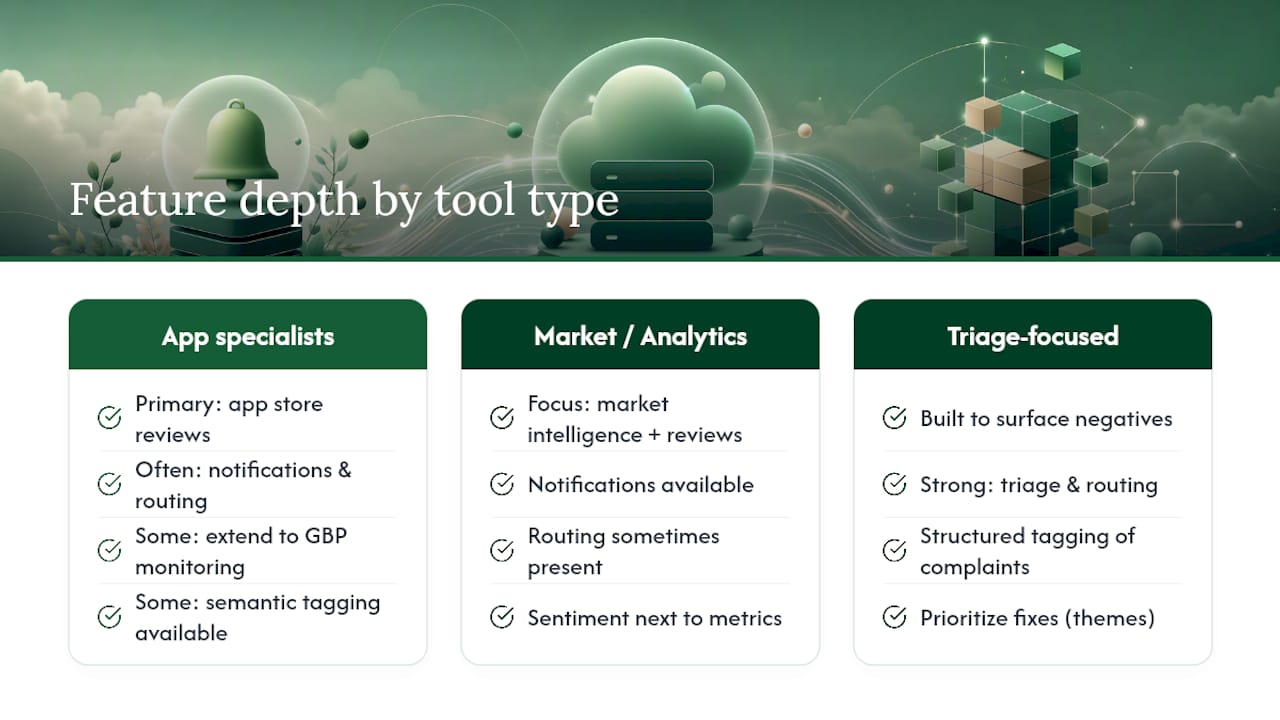
The vendor landscape for review alerts splits roughly into app-review specialists and broader reputation-management platforms. AppFollow, Appbot, and Appfigures focus primarily on app store reviews (Google Play, Apple App Store), which makes them a strong fit for app developers rather than local service businesses, though several also extend into Google Business Profile monitoring. Sensor Tower leans toward market intelligence and competitive tracking alongside review data, useful for teams that want review sentiment next to broader app performance metrics.
Enterprint and similar feedback-analytics platforms focus on turning review text into structured insight, tagging complaints by theme so product and support teams can prioritize fixes rather than just seeing a raw feed. Unstar.app takes a narrower approach, built around surfacing and triaging negative reviews specifically, which suits teams whose main pain point is missing bad reviews rather than managing volume overall.
Feature depth varies widely. Some tools stop at notification and routing. Others add semantic tagging, language filters, and reply-from-channel options once the platform connection is authorized, letting a team member respond without leaving Slack or their inbox.
Pricing across this category generally scales with either the number of apps/locations tracked or monthly review volume, and most vendors gate advanced routing, team roles, or API access behind higher tiers. The trade-off to weigh isn't just cost. It's whether a tool built for app store reviews translates cleanly to a local business managing Google Business Profile, or whether you need something built with local reviews as the primary use case from the start.
Setting Up Multi-Platform Review Alerts With BirdEye or Podium
Multi-platform reputation tools like BirdEye and Podium follow a similar onboarding pattern, even though their feature depth differs. You start by connecting your Google Business Profile account through an OAuth authorization flow, granting the platform read (and sometimes reply) access to your review data. From there, you typically connect additional platforms (Facebook, Yelp, industry-specific review sites) so everything lands in one unified inbox instead of five separate logins.

Once accounts are connected, setup shifts to configuration: assigning locations to specific team members or roles, building routing rules for star-rating thresholds, and setting up digest schedules for lower-priority reviews. Multi-location operators generally spend the most setup time here, since permissions and routing need to reflect an org chart, not just a flat list of storefronts.
The gap between these platforms and a review-reply-focused tool usually shows up in reply quality and approval control. Broad reputation platforms are built to aggregate everything under one login, which is genuinely useful for visibility. But the reply workflow itself, especially for sensitive, low-star reviews, tends to be a secondary feature bolted onto a monitoring product rather than the core design. Platforms built specifically around drafting on-brand replies with approval controls treat that step as the primary job, not an add-on.
Whichever platform you choose, the fundamentals of setup stay the same: connect Google Business Profile first, add other platforms next, then configure who sees what and who approves what before a single reply goes live.
Privacy and Compliance When Routing Reviews to Team Channels
Once you push customer review data into Slack, email, or a third-party dashboard, you've created a new copy of that data sitting outside Google's systems. That's worth treating deliberately rather than as an afterthought.
Reviews sometimes contain personal details, including a customer's name, order specifics, or complaints referencing an employee by name. Before routing that data broadly, decide who genuinely needs visibility versus who's just on a distribution list out of habit. A public marketing channel is a different risk profile than a private management channel, and 5-star reviews with a customer's full name attached still deserve the same handling discipline as anything else identifiable.
If you're integrating through a third-party vendor or a custom API build, check what that vendor does with the data once it's ingested: how long it retains reviews, whether it uses that data for anything beyond your account, and whether you can delete it on request. For agencies managing review alerts across multiple client accounts, this matters even more, since a data-handling mistake affects someone else's customer, not just your own operation.
None of this is exotic. It's the same baseline diligence you'd apply to any customer data pipeline, applied to a data source that people often treat as too public to worry about.
What Actually Keeps Review Alerts From Falling Apart
Most alert setups fail from neglect, not bad tools. Build alert configuration into new employee onboarding instead of assuming someone will get to it eventually, and assign one person as the actual owner of review triage. Without an owner, alerts pile up unread.
Set different response expectations by severity. A 1-star review complaining about health or safety needs same-day attention; a 4-star review with a minor gripe can wait for a weekly batch. Keep a human in the approval loop for anything sensitive. AI-drafted replies speed up the writing, but they shouldn't publish themselves on a review that could escalate.
— Ryan
Get Alerts and AI-Drafted Replies in One Workflow
Native notifications and hosted monitoring tools solve half the problem: knowing a review exists. The harder half is responding to it consistently, especially across a dozen locations with different managers and different tolerance for risk. Local Review Reply closes that gap by pairing review monitoring with AI-drafted, on-brand replies that route through an approval step before anything sensitive goes public, so multi-location operators and franchises get consistency without losing oversight on the reviews that matter most.
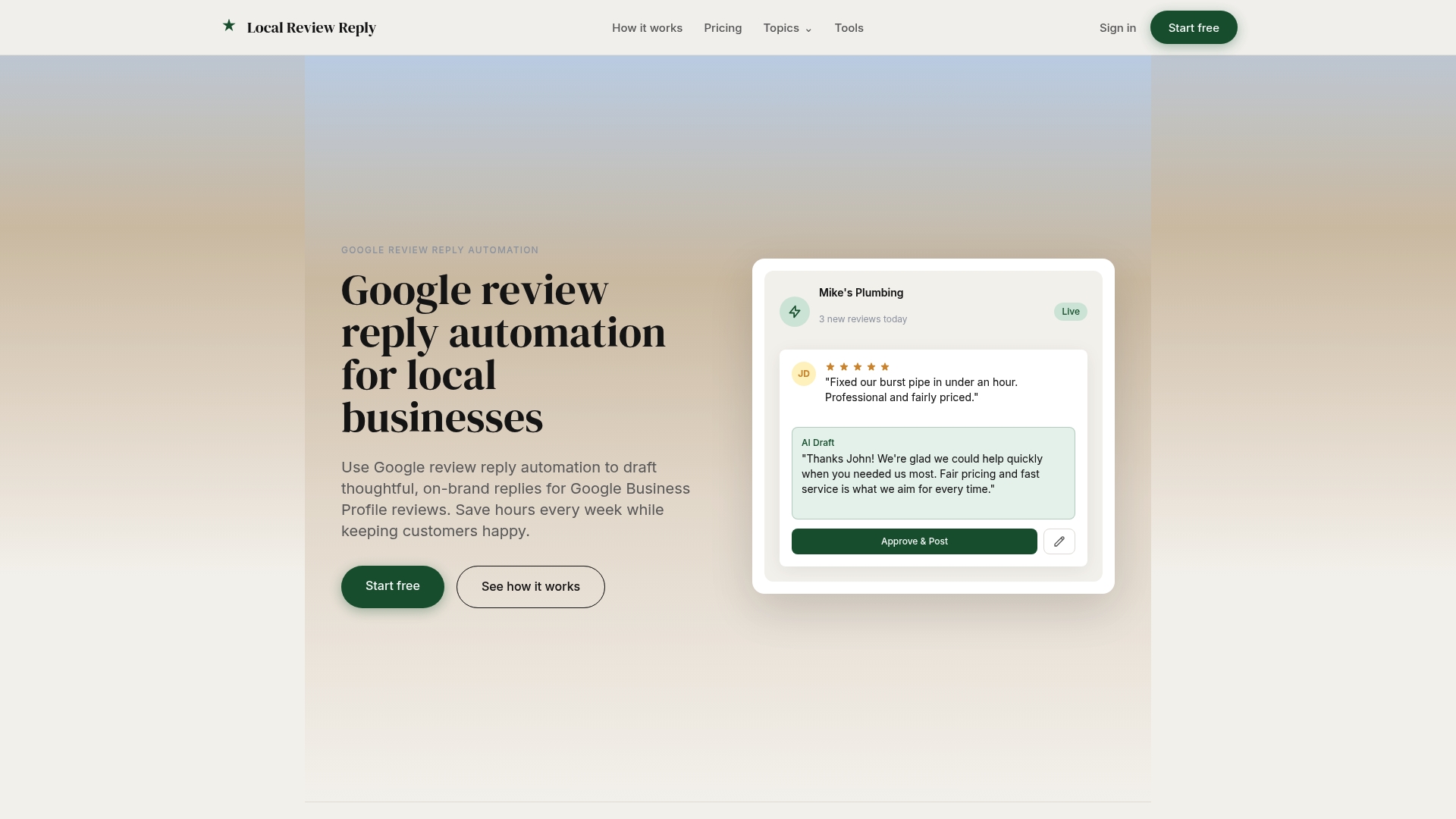
Instead of stitching together a native alert, a Slack channel, and a separate reply process, everything lives in one workflow with team roles and permissions built for franchises and agencies managing several accounts at once. Approval controls stay in place for low-star reviews, while routine replies move faster without waiting on someone to be free. If you're managing multiple locations and tired of alerts that go nowhere, check the feature breakdown and start a trial to see how the approval workflow fits your team before you commit to anything.
Sources
- Notifications | Google Business Profile APIs | Google for Developers
- Choose which notifications you get for your Business Profile - Google Business Profile Help
- How to Set Up Google Review Notifications (And Fix Them When They Stop Working) | Bragly
- Set Up Email Alerts for Updated Reviews | BrandBastion Knowledge HQ