
Yes, you can export owner replies and the metadata attached to them. Local Review Reply, review-management dashboards, and Google's own tools all support this through three routes: a built-in platform export, an API pull, or an automated pipeline built in something like Zapier. Most exports land as CSV, Excel, or JSON, ready for an audit, an archive, or a report to a franchise owner.
TL;DR:
- Most exports include key fields such as review ID, reply text, reply timestamp, rating, source, and location ID, essential for cross-referencing and analysis.
- CSV format is ideal for quick spreadsheet analysis, while JSON suits developers feeding data into dashboards or systems where nested review data is needed.
- Manual exports are sufficient for occasional audits, but automating with tools like Zapier or APIs ensures continuous data flow across multiple locations.
- Exported reply files must be retained for 12 to 24 months, with care taken to log approvers and timestamps for compliance and dispute resolution.
- Unanswered reviews can be quickly identified by empty reply text fields, and proper column mapping streamlines importing data into reporting tools.
Table of Contents
- What Fields and Formats Should You Expect in an Export?
- How Do You Export Replies From Google Business Profile and Other Platforms?
- Automating the Capture: Zapier, Webhooks, and Scheduled Dumps
- What Should You Actually Do With Exported Replies?
- How Do You Keep Exports Compliant and Auditable?
- What Column Map Makes an Export Actually Usable?
- Why Export Workflows Matter More Than Most Owners Realize
- How Local Review Reply Fits Into Your Export and Approval Workflow
- Where to Go for Exact UI and API Steps
- Sources
- FAQ
What Fields and Formats Should You Expect in an Export?
A usable export gives you more than just the reply text. Look for these fields in any file you pull, whether it comes from Google Business Profile, a reputation platform, or a third-party exporter:
- review_id: a unique identifier tying the reply back to the original review, which matters if you need to cross-reference records later.
- owner_reply_text: the actual response your team or software posted.
- owner_reply_at: the timestamp of the reply, separate from the original review date.
- rating: the star rating the customer left, usually 1 through 5.
- source: the platform the review came from (Google, Yelp, Facebook, and so on).
- location_id: critical for multi-location operators filtering data by site.
CSV works best for spreadsheet analysis and quick imports into Excel or Google Sheets. JSON suits developers building a dashboard or feeding data into another system, since it preserves nested structures like reviewer metadata more cleanly. Either way, check for empty owner_response_text fields immediately after export. That gap is the fastest way to spot reviews nobody replied to.
How Do You Export Replies From Google Business Profile and Other Platforms?
Different sources require different moves, but the pattern repeats: locate the export or reply function, filter what you need, then download.
- Google Business Profile. Verify your account, then open the Reviews tab to see the reply interface. Google documents this flow directly: business owners read reviews through their profile, reply through a dialog box, and every reply gets checked against policy before it posts, which can take a few minutes. Google doesn't offer a native bulk export button for replies inside the standard dashboard, so most businesses rely on the Business Profile API or a third-party tool to pull historical reply data at scale.
- Review-management platforms. Tools built for reputation management typically follow an Export, then filter by source, location, and date range, then download CSV or Excel pattern. Reputation.com's support documentation describes exactly this: filter your reviews, then click Download CSV or Excel, with owner replies and customer comments arriving in fixed columns.
- Dedicated exporters and scripts. Standalone tools built specifically for pulling Google Maps data can capture owner_response_text and timestamps alongside ratings and photos, exporting everything into CSV or JSON for offline analysis. These require API keys or account permissions, so confirm your access level before you build a workflow around one.
Permissions matter more than most managers expect. If you're logged in as a location manager rather than the primary account owner, you may see replies but lack the access to export them in bulk. Check your role in the platform's admin settings before assuming an export feature is broken.
Pro Tip: If a platform's dashboard limits your date range to 90 days, run exports quarterly and archive each file with a consistent naming convention (like location_id_Q1_2026.csv). It saves hours when someone eventually asks for two years of history.
Automating the Capture: Zapier, Webhooks, and Scheduled Dumps
Manual exports work for occasional audits. If you're managing ten locations or a client roster, automation keeps replies flowing into your records without someone remembering to click download every week.
Zapier documents a practical pattern here: a new review or reply triggers a workflow that maps the relevant fields (reviewer name, rating, reply text, timestamp) and appends a row to a Google Sheet, or pushes the data into cloud storage as a CSV. Zapier's review-response automations also support routing AI-drafted replies to a human approver before anything posts publicly, which matters if you're using drafting software alongside your export pipeline.
For higher volume, webhooks and direct API calls scale better than a no-code tool. You can schedule CSV or JSON dumps daily or weekly depending on your audit cadence.
- Route every AI-drafted reply through an approver step, and log the approver's name and the approval timestamp in the export itself.
- Set a weekly export for operational tracking and a monthly archive for compliance and dispute records.
- Use a partner like Pattrn Data if you're centralizing exports from multiple review sources into one data warehouse.
What Should You Actually Do With Exported Replies?
An export file sitting unopened in a folder does nothing. The value shows up when you turn it into a metric or a decision.
- Track response rate and speed. Use the owner_reply_at and original review timestamps to calculate average reply time per location, then flag any location where negative reviews sit unanswered past your target window.
- Check reply quality. Sample a batch of owner_reply_text entries and check whether they read as personalized or as copy-pasted filler. Shopify's guidance on review responses backs this up directly: templates work as a starting point, but the strongest replies reference specifics from the customer's actual review.
- Feed your CRM or ticketing system. Import exported rows so a public reply links to the internal case that resolved the customer's complaint, closing the loop between what customers see and what your team actually did.
- Build better templates. Use your best-performing exported replies as training examples for future drafts, keeping the approval log attached so you know which ones a human actually signed off on.
One workflow pattern worth borrowing from reputation management guidance: centralize visibility across locations, assign ownership per review, and connect the reply back to an actual resolution rather than treating the public reply as the end of the interaction.
How Do You Keep Exports Compliant and Auditable?
An export file becomes a business record the moment you use it for a dispute, a compliance check, or a franchise audit. Treat it that way from the start.
- Log the approver's name and timestamp for every AI-assisted reply, especially on sensitive or low-star reviews where wording matters most.
- Set a retention schedule (many businesses keep 12 to 24 months of exports) so you have a paper trail if a reviewer or regulator disputes what was said and when.
- Avoid exporting reviewer personal details you don't need. Reviewer names and review text are usually public, but cross-referencing them with other customer data creates privacy exposure you don't need to carry.
- Remember that Google reviews replies against its own policy before they go live, and replies can be edited or deleted after posting, so your export timestamp should reflect the current, not original, version if edits happened.
Pro Tip: Store your approval log in the same file as the reply export, not a separate system. When someone asks "who approved this reply" six months later, you want one file to check, not three.
What Column Map Makes an Export Actually Usable?
A clean column structure saves hours of remapping when you import into a spreadsheet or reporting tool. Here's a practical starting map:
| Column | Description |
|---|---|
| review_id | Unique identifier for the review |
| reviewer_name | Public display name of the reviewer |
| review_text | Original customer review content |
| rating | Star rating, typically 1 to 5 |
| owner_reply_text | Your business's response |
| owner_reply_at | Timestamp of the reply |
| source | Platform of origin (Google, Yelp, etc.) |
| location_id | Site or branch identifier |
Once the file is in Excel or Sheets, set up separate tabs or filtered views for unreplied reviews, negative reviews, and escalations that need manager attention. Save your strongest approved replies as templates with token placeholders (like {customer_name} or {service_type}) so your team, or a tool like Local Review Reply's template library, can personalize fast without starting from a blank page every time.
Why Export Workflows Matter More Than Most Owners Realize
Centralized exports catch the replies that fall through the cracks when five locations each handle reviews their own way. That single audit trail is worth more than any individual reply. Automation speeds up capture, but speed without an approval log erodes brand voice fast, especially on the low-star reviews where tone actually matters. The export file itself becomes your best defense in a dispute and your best training data for the next batch of replies.
— Ryan
How Local Review Reply Fits Into Your Export and Approval Workflow
Local Review Reply is built for the exact gap this article just walked through: drafting replies fast without losing the paper trail you need for audits or franchise-wide consistency. The platform drafts personalized, on-brand replies to Google Business Profile reviews in seconds, and it routes sensitive or low-star reviews through an approval step before anything posts, so a human always signs off on the tricky ones.
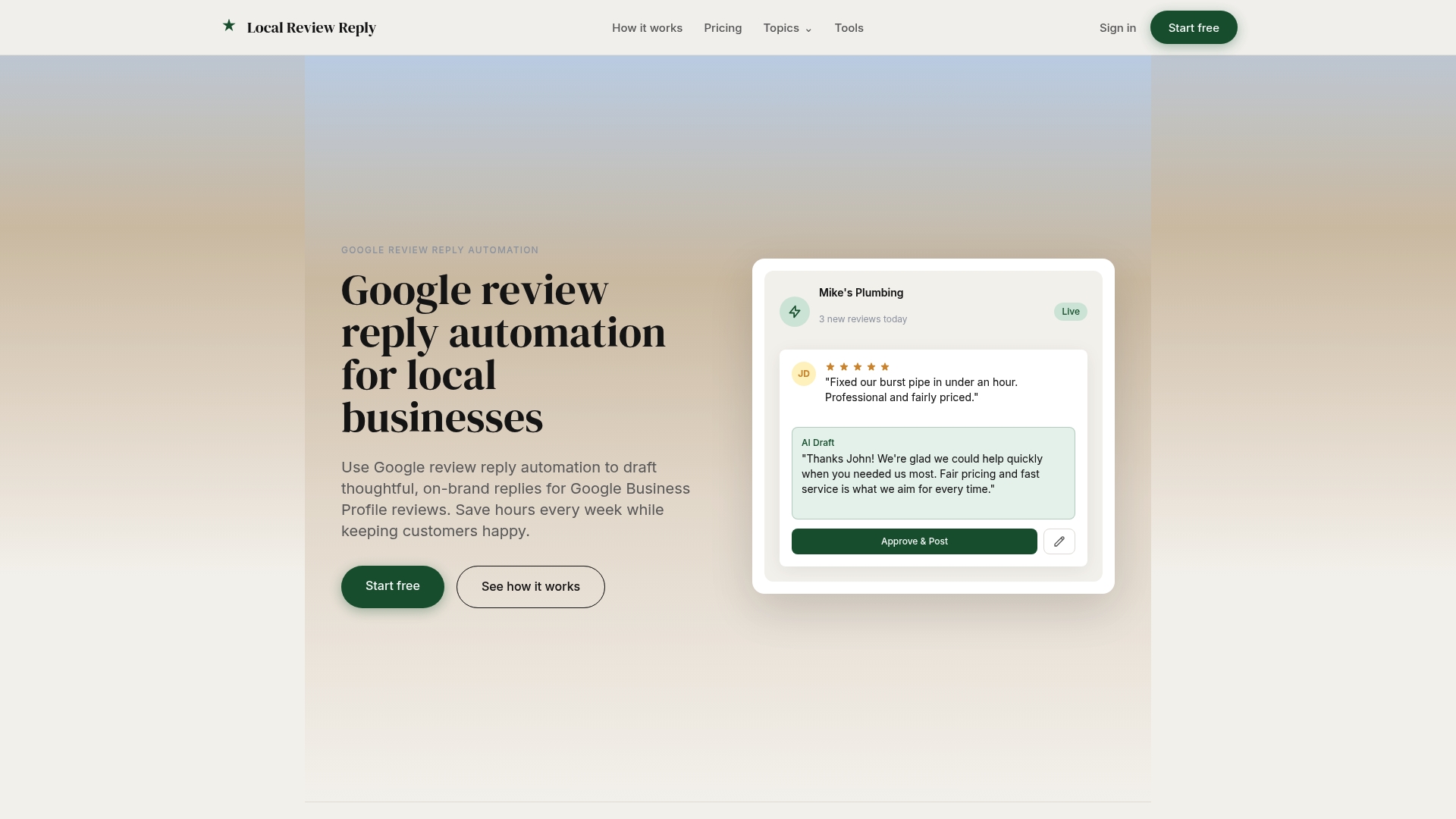
For multi-location operators and agencies, that means centralized management across every site instead of chasing down replies location by location. If you want to see how drafting, approval controls, and reporting work together, check the feature overview or head straight to current pricing, which includes a Free plan alongside Starter at $5 AUD per month, Growth at $19 AUD per month, and Scale at $49 AUD per month. Start with the free tier to see how drafted replies and approval routing fit your current export habits before considering a paid plan.
Where to Go for Exact UI and API Steps
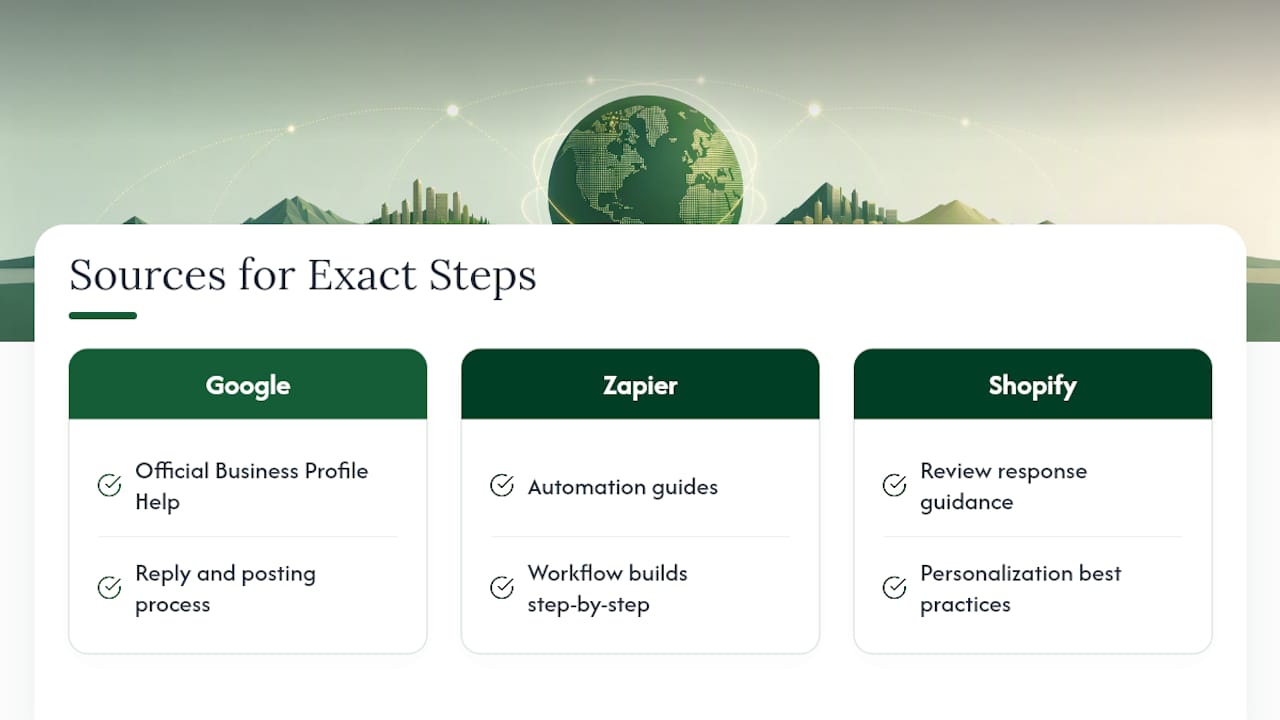
For the precise clicks and timing, go straight to the source. Google's own Business Profile Help documentation covers the reply and posting process. Zapier's automation guides show workflow builds step by step, and Shopify's review response guidance covers personalization best practices worth applying to any template you export or reuse.
Sources
- Read & reply to reviews — Google Business Profile Help
- How To Write a Review Response: Templates and Examples (2026) - Shopify
- Review Response Management Automations & AI Workflows | Zapier
FAQ
Can I export owner replies from Google Business Profile directly?
Google's dashboard doesn't include a native bulk export button for replies, but you can read and reply through the standard reviews interface. Most businesses use the Business Profile API or a third-party exporter to pull historical reply data at scale.
What's the difference between CSV and JSON exports for reviews?
CSV suits spreadsheet analysis and quick imports into Excel or Google Sheets, while JSON preserves nested data structures better for developers building custom dashboards. Choose CSV for reporting and audits, JSON for system integrations.
How do I find reviews my team hasn't replied to yet?
Check the owner_response_text column in your exported file. An empty cell in that column means no reply was posted, making it the fastest filter for finding unanswered reviews across locations.
Does Local Review Reply support exporting reply data?
Local Review Reply centralizes reply drafting and approval across locations, which supports the kind of consistent record-keeping this article describes. Check the pricing page for plan details, since export and reporting capabilities vary by tier.
How often should I export review replies for audits?
A weekly export works well for operational tracking, while a monthly archive suits compliance and dispute records. Match your retention schedule to how often your business faces reviews or franchise-level reporting requirements.